
Creating an automation workflow for The Response Center
Log into the GoHighLevel account and access the automation dashboard
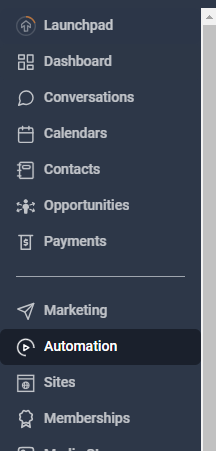
Click ‘Create Workflow’, then ‘Start from Scratch’
Set the name of the workflow with a descriptive name for the future reference.
Click ‘Add New Trigger’ to add a workflow trigger. In this example, we’ll be using the “Contact Tag” trigger.
Set a name for your trigger or leave as is.
Click “Add filters” and add “Tag Added” filter. Use the existing tag or create a new one. Here, we are using the “response test” tag as an example.

Hit “Save Trigger”
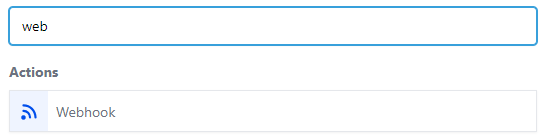
Click the plus sign in the workflow builder. Search for webhook from the Actions sidebar
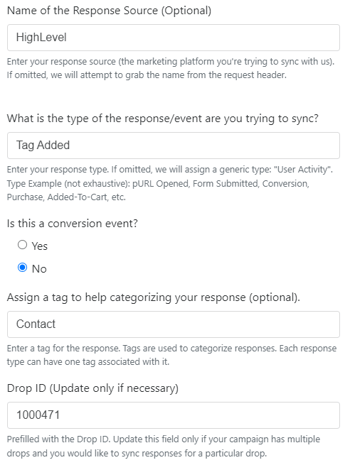
Set up the webhook:
Action Name: Leave as is or set a new name.
Method: Must be POST.
URL: Your Response Center URL generated from the campaign dashboard page.
Click “Save Action”
Click “Save” to save the workflow and flip the toggle from Draft to Publish
Go to contact and enter one of the existing contacts. If no contacts are available, create one.
Add a tag you specified during the workflow setup. In this example, we used the “response test” tag. You can search the tag if necessary.
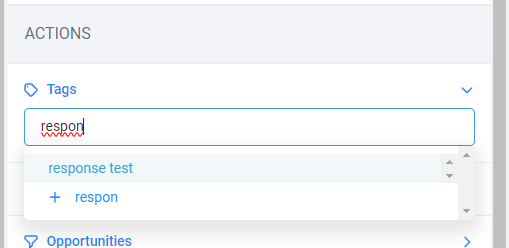
Select the tag. This will be saved automatically once clicked.
Go back to the automation workflow list
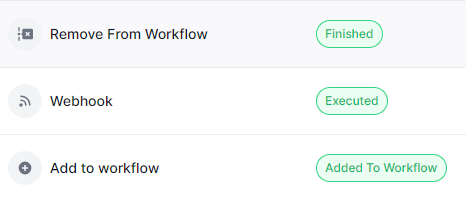
Check the Execution Logs to confirm that the webhook request has been successfully made from the HighLevel workflow you just created.
If the workflow was successfully executed, you will see 3 actions from the Execution Logs as shown below:
If you see a failed try, wait for a few minutes and let the workflow retry on its own.
Finally, go to your Postalytics campaign dashboard and check the Responses tab.